

Download Adguard – ad blocker, anti‑malware, free, secure
What Is Adguard? – A Complete Overview
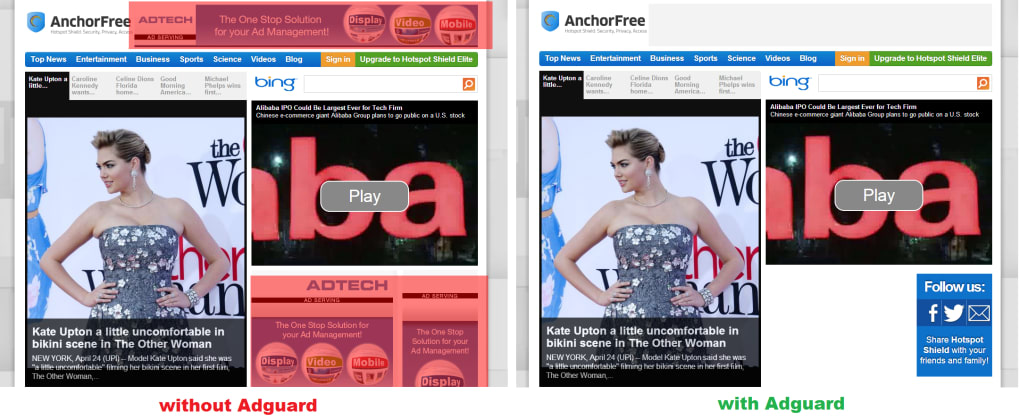
Adguard is a modern, configurable ad‑blocking application that removes unwanted advertisements, pop‑ups, and malicious trackers from every web page you visit. Designed with a clean, minimalist interface, the program offers two distinct user modes: a Basic interface for users who prefer a set‑and‑forget experience, and an Extended interface that opens up deeper configuration options for power users. From the moment you launch Adguard, its default protection level blocks the majority of intrusive ads, giving you a quieter, faster‑looking browsing experience without the need to tweak any settings.
While the out‑of‑the‑box filter set captures most common ad formats, you can still manually add custom filters or whitelist specific sites when an element slips through. Beyond ad removal, Adguard also shields you from malware, phishing attempts, and deceptive scripts, turning it into a lightweight security layer for browsers and applications alike. Although the tool promises to speed up page loads by eliminating heavyweight ad scripts, real‑world testing has revealed a noticeable slowdown on some systems—an issue that potential users should weigh against its strong blocking capabilities.
In summary, Adguard shines with its attractive UI, easy onboarding, and robust protection, but its performance quirks mean it may not be the best fit for users who demand lightning‑fast browsing on older hardware.
Key Features That Make Adguard Stand Out
- Dual Interface Modes: Choose between a simple Basic view or an in‑depth Extended view for granular control.
- Comprehensive Ad Blocking: Blocks banner ads, video ads, native ads, and intrusive pop‑ups across all major browsers.
- Malware & Phishing Protection: Real‑time detection of malicious domains and phishing pages to keep your data safe.
- Custom Filter Support: Import or create custom filter lists (e.g., EasyList, Fanboy) to target specific ad types.
- Whitelist Management: Easily whitelist trusted sites that you want to support or that need certain scripts to function.
- Stealth Mode: Hides your ad‑blocking activity from websites that try to detect blockers, preventing “please disable your ad blocker” messages.
- Cross‑Browser Compatibility: Works seamlessly with Chrome, Firefox, Edge, Safari, Opera, as well as less common browsers like Vivaldi and Brave.
- System‑Wide Protection (Optional): On Windows and macOS you can enable network‑level filtering to block ads in non‑browser apps.
- Automatic Updates: Regular filter list updates and software patches keep the protection current without manual effort.
- User‑Friendly Dashboard: Real‑time statistics on blocked requests, traffic saved, and security threats neutralized.
Each of these features is designed to give you both convenience and control. The Basic mode automatically applies a balanced filter set that covers the majority of intrusive content while preserving site functionality. Power users who enjoy tinkering will appreciate the Extended mode, where you can enable or disable individual filter categories, adjust the strictness of the anti‑malware engine, and even script custom blocking rules using regular expressions.
The inclusion of a stealth mode is particularly noteworthy because many premium websites now display anti‑ad‑block messages that can interrupt your browsing flow. By masking the presence of Adguard, the tool ensures you stay in control without constantly having to disable protection. Finally, the system‑wide option extends the ad‑blocking benefits to desktop applications, streaming services, and games that rely on embedded web views—something only a handful of competitors can claim.
Installation, Setup, and Compatibility Across Platforms
Step‑by‑Step Installation Guide
Installing Adguard is straightforward on all supported operating systems. Begin by visiting the official website and clicking the Download button that matches your platform (Windows, macOS, Android, or iOS). For desktop users, the installer is a standard .exe (Windows) or .dmg (macOS) package.
Run the file and follow the on‑screen prompts: accept the license agreement, choose the installation directory, and decide whether you want the program to start automatically with Windows or macOS. Mobile users can install the app directly from Google Play Store or Apple App Store—no sideloading required. Once installed, launch Adguard and you’ll be greeted by a quick onboarding wizard that asks whether you prefer the Basic or Extended interface.
Choose your preferred mode, allow the necessary network permissions, and the application will immediately begin filtering traffic.
Operating System Support (Windows, macOS, Android, iOS)
Adguard supports the latest versions of Windows 10/11, macOS Catalina and later, Android 8.0+, and iOS 13+. On Windows, the software integrates with the system’s network stack, offering both a browser extension and a standalone filtering engine. macOS users benefit from a menu‑bar app that works alongside Safari, Chrome, and Firefox. For Android, Adguard can function as a local VPN, allowing ad blocking across all apps without root access. iOS users get a similar VPN‑based approach, which, while limited by Apple’s sandboxing, still blocks ads in Safari and most third‑party browsers. The program also provides optional support for Linux through a command‑line interface, though this is considered an advanced feature and not officially bundled in the standard installer.
First‑Time Configuration Tips
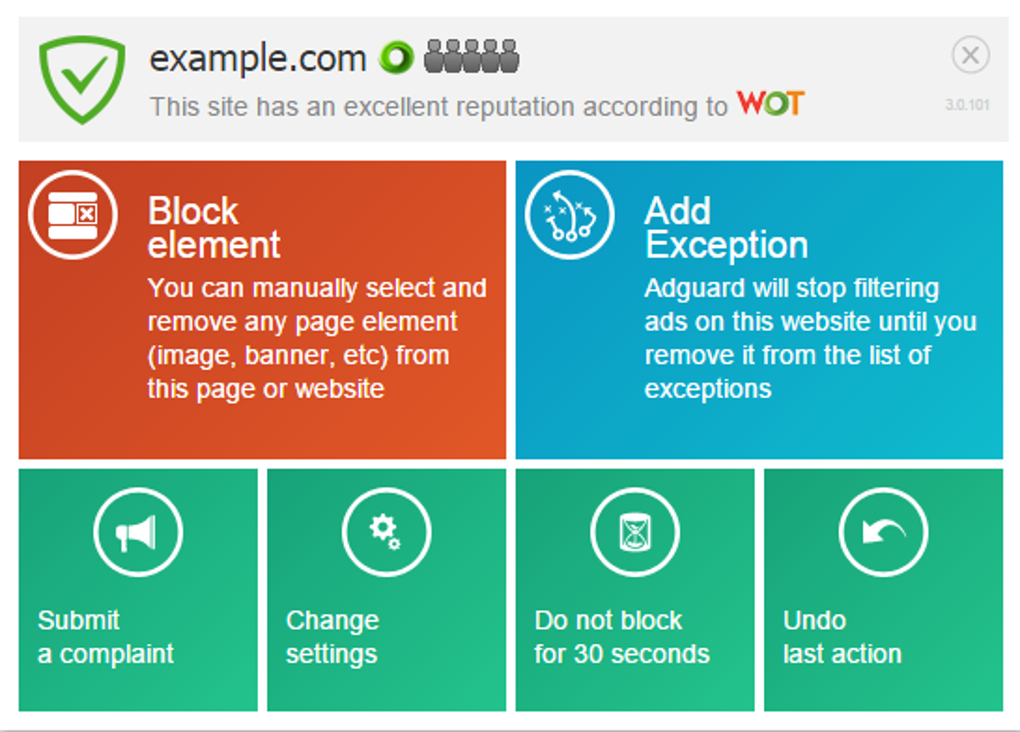
After the initial launch, you’ll see a quick status panel showing the number of blocked requests and the current protection level. If you notice any websites breaking (e.g., missing videos or broken login forms), click the “Allow on this site” button to whitelist it. For users opting for the Extended interface, we recommend exploring the “Filters” tab where you can enable specialized lists like “Social Media Tracker Blocker” or “Privacy Badger Compatibility.” Adjust the “Stealth Mode” slider to a level that balances privacy with site compatibility. Finally, enable the “Automatic Updates” toggle to keep your filter lists fresh—this alone can improve both blocking accuracy and performance over time.
Pros, Cons, and Answers to the Most Common Questions
Pros
- Intuitive UI with two distinct modes for beginners and advanced users.
- Broad ad‑blocking coverage, including video, native, and pop‑up ads.
- Integrated malware and phishing protection adds a security layer.
- Custom filter support lets power users tailor blocking rules.
- Cross‑browser and cross‑platform compatibility ensures consistent protection.
Cons
- Noticeable browsing slowdown on older hardware or low‑end devices.
- System‑wide filtering can be complex to set up for non‑technical users.
- Free version lacks some premium features like advanced privacy reports.
- Occasional false positives may require manual whitelisting.
- iOS VPN‑based approach is limited by Apple’s restrictions, reducing effectiveness.
Frequently Asked Questions
Does Adguard work with all browsers?
Yes. Adguard provides extensions for Chrome, Firefox, Edge, Safari, and Opera, and it also works with less common browsers like Vivaldi, Brave, and Tor by using its system‑wide filter engine.
Can I use Adguard for free?
A free version is available for all platforms, offering core ad‑blocking and basic malware protection. Premium plans unlock advanced features such as parental control, detailed analytics, and priority filter updates.
Why does my browsing feel slower after installing Adguard?
Adguard inspects every network request to filter ads and malicious content, which can add a small processing overhead. On older CPUs or devices with limited RAM, this overhead may become noticeable. Adjusting the protection level or disabling system‑wide filtering can improve speed.
Is my data safe when using Adguard?
Adguard processes requests locally on your device and does not send browsing data to external servers. The only communication is for filter list updates, which are fetched over encrypted HTTPS connections.
How do I add a custom ad‑blocking filter?
Open the Adguard dashboard, navigate to the “Filters” tab, click “Add Custom Filter,” paste the filter URL or raw rules, and hit “Save.” The new list will be applied instantly and will appear in the blocked‑request statistics.
Overall Verdict: Adguard delivers powerful ad‑blocking and security features with a polished UI, but its impact on browsing speed makes it a better fit for modern machines or users willing to trade a little performance for comprehensive protection.
Final Thoughts and How to Get Started
If you’re tired of intrusive ads, pop‑ups, and the occasional malicious script, Adguard provides a robust solution that works across browsers, devices, and operating systems. Its dual‑mode interface ensures that newcomers can enjoy immediate protection while seasoned users have the flexibility to fine‑tune every filter rule. The built‑in malware and phishing shields add a valuable security layer that goes beyond simple ad removal.
However, be aware that the added processing can slow down browsing on older hardware, and the free version omits some premium conveniences. For most users with a recent Windows 10/11 PC or a macOS Catalina‑or‑newer machine, the performance trade‑off is modest and well‑worth the ad‑free experience. To experience a cleaner, safer web today, click the download button below, choose the appropriate version for your platform, and follow the quick setup guide.
Remember to enable automatic updates so your filters stay current against the ever‑evolving ad ecosystem. Happy, ad‑free browsing!







